
English
Family settings
The Settings page on the website gathers everything about the family and the bot: name and language, modules, departments, roles and channels, warnings, ranks, texts and forms. Only the server owner can change the settings; other administrators see them read-only.

Changes apply with Save in the bar at the bottom of the page. Every change goes to the audit log with the old and the new value.
General settings
| Setting | What it does |
|---|---|
| Family name | Shown in the application panel and the bot's messages instead of the Discord server's name. |
| Discord server ID | Read-only: useful when you write to support. |
| Bot interface language in Discord | The language the bot uses in panels, messages and logs. The website's language is changed separately, in the website's header. |
| System message color | The color of the stripe on the left of the bot's messages. |
| Log command usage to the log channel | The bot notes every slash command in the log channel: who, where and with what options. |
| RP platform and server | Majestic RP, GTA5RP or Russia Online and your server. Needed for online monitoring. |
Multi-server
If the family recruits for several servers or projects at once, turn on Multi-server and add the servers (up to 10). For each one give the project, the server and the roles when accepted.
What changes:
- a candidate first picks a server when applying;
- when accepted, they get the chosen server's roles instead of the general role on accept;
- a department can have a server — it then recruits only for that server.
Modules
The module switches: Warnings, Tickets, AFK list, Blacklist, Logs, Security, Ranks. A module that's off disappears from the panels, commands and the website. What exactly goes away: Turning modules on and off.
Departments
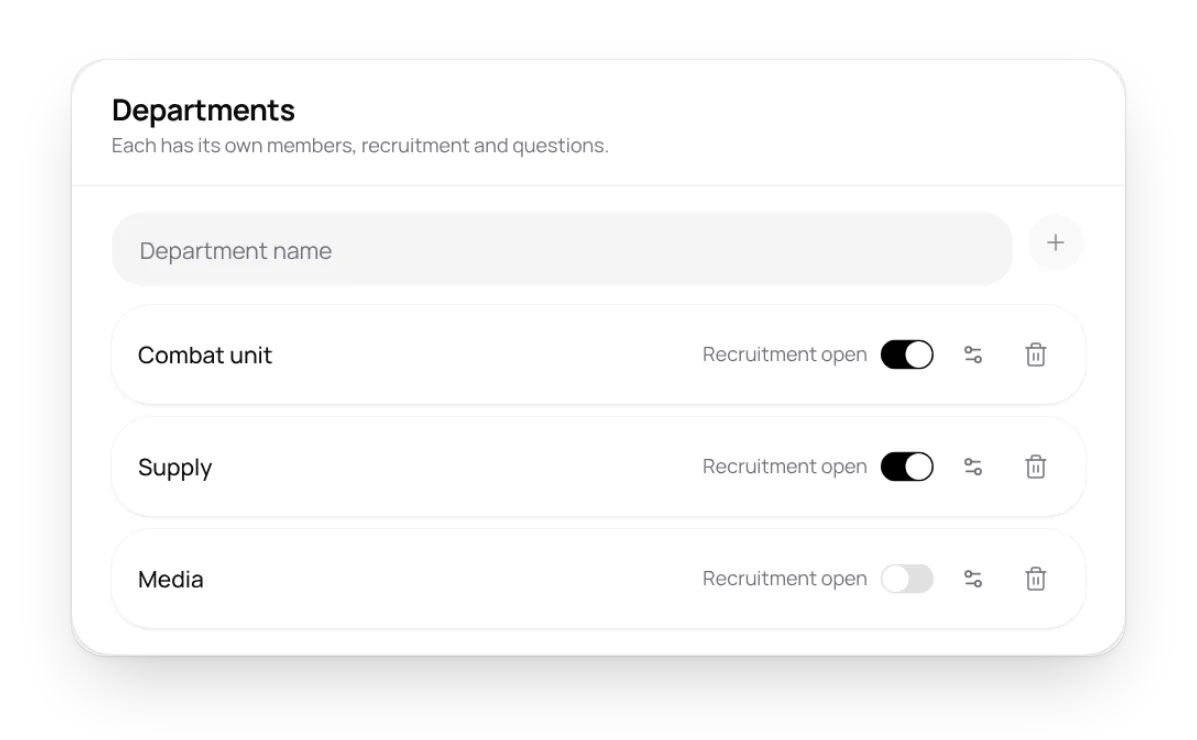
Rosters inside the family — up to 5 departments. For each department:
- name;
- server — with multi-server;
- recruitment open — whether the department accepts applications right now. Closing it asks for confirmation;
- members — who's in the department now;
- question settings — its own form questions (up to 4). Without them, the family's standard questions are used.
At the top of the block is the Family recruitment switch: while it's off, no department accepts applications.
Bot roles and channels

| Setting | What it does |
|---|---|
| Application to join | The channel with the application panel. The bot opens a thread here for each application. |
| New applications | A notice about every new application to review arrives here. |
| Member portal | The channel with members' personal cabinet. |
| Admin panel | The channel with the admin panel. Best kept closed. |
| Log channel | The bot writes about administration actions here. |
| Role on accept | Given to a member when their application is accepted. |
After a channel changes, the bot posts the panel in the new channel. Request threads open in the personal cabinet's channel.
Warn roles
- 1 warning and 2 warnings — the roles the bot gives for the first and the second warning.
- On 3rd warn — strip all roles, kick, ban or assign a punishment role.
More: Warnings.
Bot texts and forms
| Button | What it sets up |
|---|---|
| Bot messages | The texts of notices and logs. See Bot messages. |
| Request settings | Request types, their questions and who can use them. See Requests. |
| Warn removal conditions | What a member can do to get a warning removed. See Warnings. |
Criteria for candidates and the standard form questions are in Recruiting → Recruiting settings. See Recruitment.