
English
Recruitment
This module handles applications to join the family, from the candidate's form to the administration's decision and the roles that follow. It's part of the Tickets module: turn that off and applications are off too.
How it works
- The candidate presses the button in the application panel or types
/apply. - With multi-server on, they pick an RP server. If there are departments, they pick a department.
- They fill in the form and send it.
- The bot opens a private thread for the application in the application panel's channel and sends the candidate a confirmation by direct message.
- A notice arrives in the New applications channel, mentioning the admin roles and the recruiter role.
- The administration talks to the candidate in the thread and makes a decision.
- After the decision the thread is closed, the candidate gets a message, and the application goes to the log and the statistics.
Applying
The form
The first question is always the same: IC name / character level / Static ID. It can't be removed, but its text and hint can be changed. The other questions (1 to 4) are set by the administration:
- for the whole family — the standard questions in the recruiting settings;
- for each department — its own questions. A department without questions uses the standard ones.
| Question type | How the candidate answers |
|---|---|
| Short | One line |
| Paragraph | Several lines |
| Dropdown list | Picks an option from a list (at least 2 options) |
| One option | Ticks one option |
| Several options | Ticks several options |
| File | Attaches 1 to 10 files, for example screenshots of their stats |
Any question can be required and can have a hint, shown in grey inside the answer field.
Who can't apply
The bot tells the candidate right away why they can't apply:
- recruitment to the family or to the chosen department is closed;
- they already have the family role (the role on accept);
- they already have an active application — they need to wait for the decision;
- their application was recently rejected, and the waiting time hasn't passed yet;
- they're on the blacklist by Discord account, character name or Static ID. Such an application is rejected at once, and its author is banned.
Reviewing
Administrators and the recruiter role review applications. The application's thread has buttons:
- Accept. The candidate gets the role on accept (with multi-server — the chosen server's roles), rank 1 if ranks are set up, and joins the chosen department's roster. A "Welcome!" message arrives by direct message.
- Reject. The bot asks for a reason. The candidate gets it by direct message, and the reason goes to the rejection statistics. They can apply again after the set number of days.
After the decision the thread is closed. The thread's conversation is kept: it's visible on the Tickets page on the website, even if the candidate has left the server.
Message texts
Every message the candidate receives ("application created", "accepted", "rejected") can be rewritten in Bot messages.
Departments
Departments are rosters inside the family, for example "Security Division" and "Logistics". Up to 5 departments. Each has:
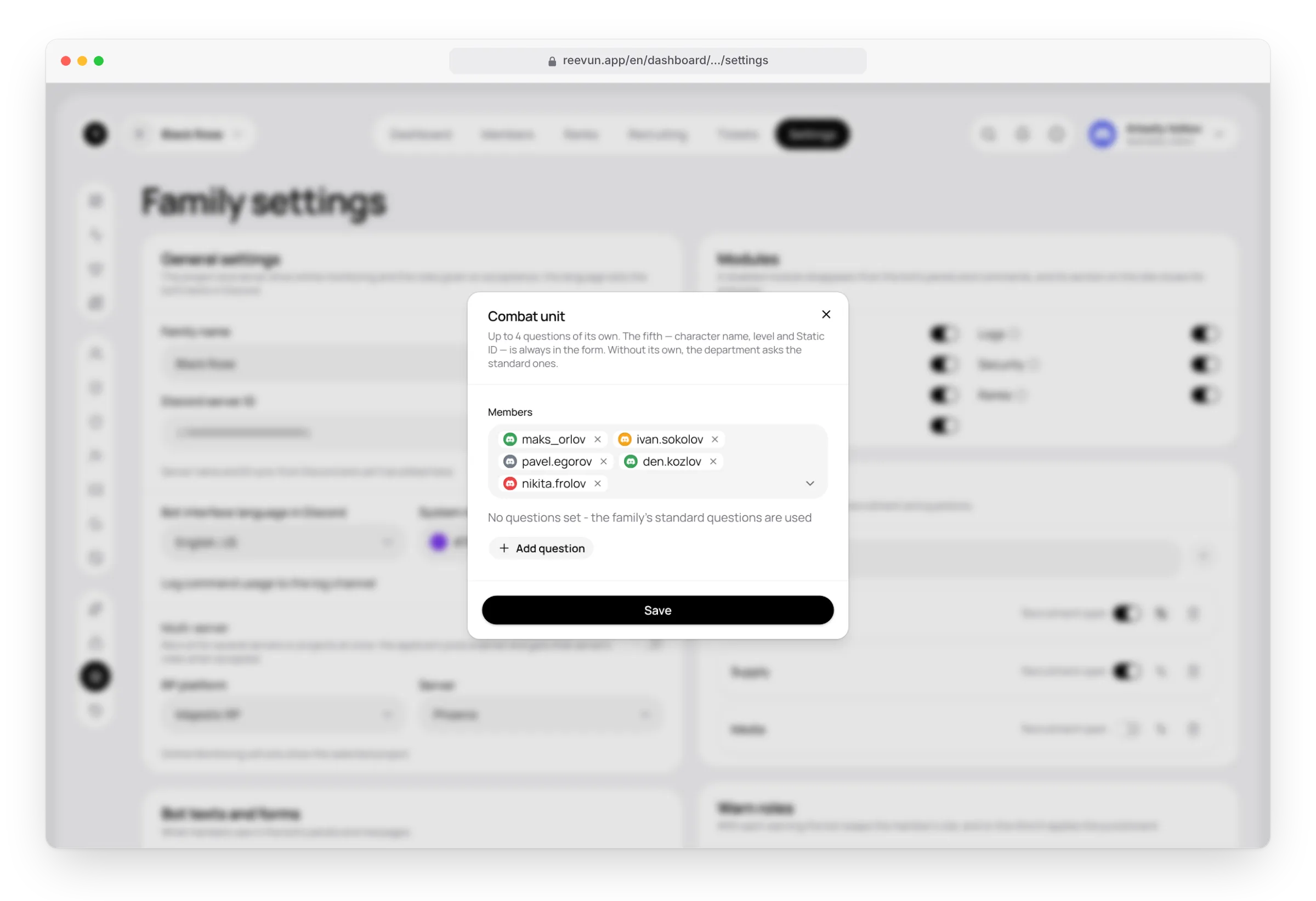
- its own member list: an accepted candidate joins it automatically, and on the website members can be added and removed by hand;
- its own recruitment, which can be opened or closed separately from the others;
- its own form questions (up to 4);
- with multi-server — its own RP server: the department only recruits for that server.
Departments are set up on the website in Settings → Departments. More: Family settings.
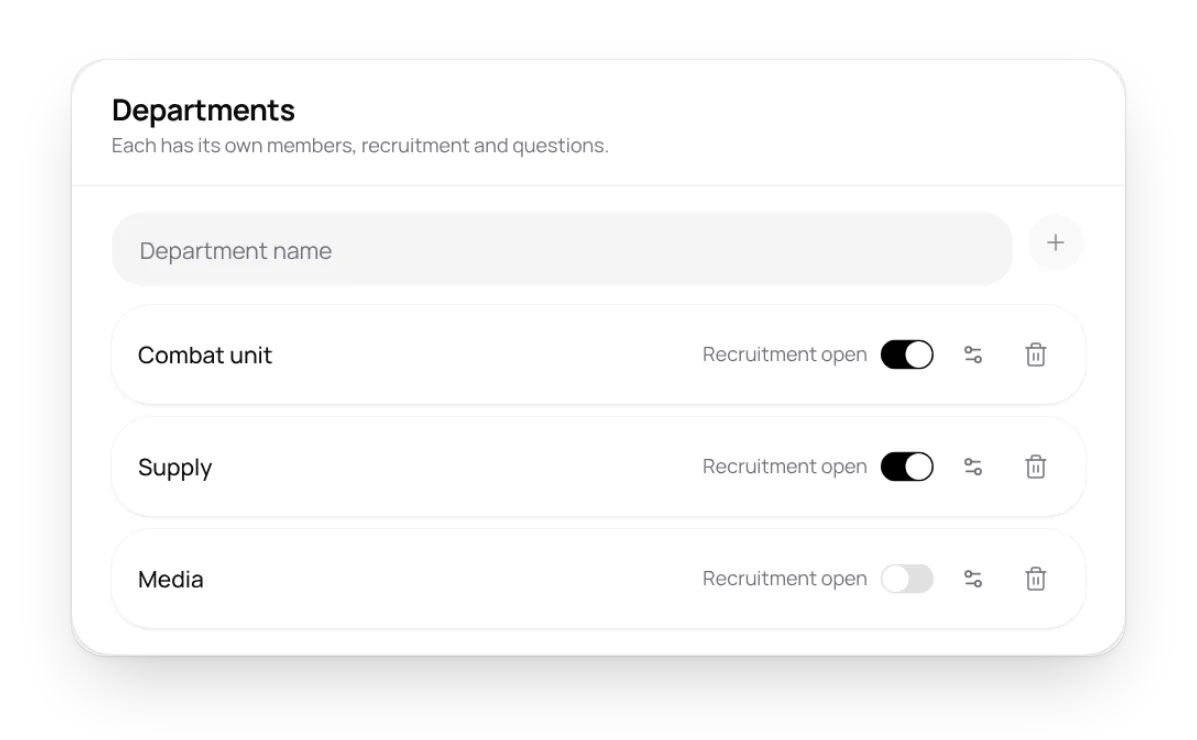
Open a department's application questions with Question settings next to it. If it has none, applicants to that department answer the family's standard questions.
Opening or closing recruitment
- With the
/recruitmentcommand. - In the admin panel, the Rosters section.
- On the website: the Family recruitment switch and the switch next to each department in Settings → Departments.
While family recruitment is closed, no department accepts applications. The status changes in the application panel at once, so candidates see where they can apply right now.
Recruiting settings
Opened on the Recruiting page with the settings button in the top right corner.
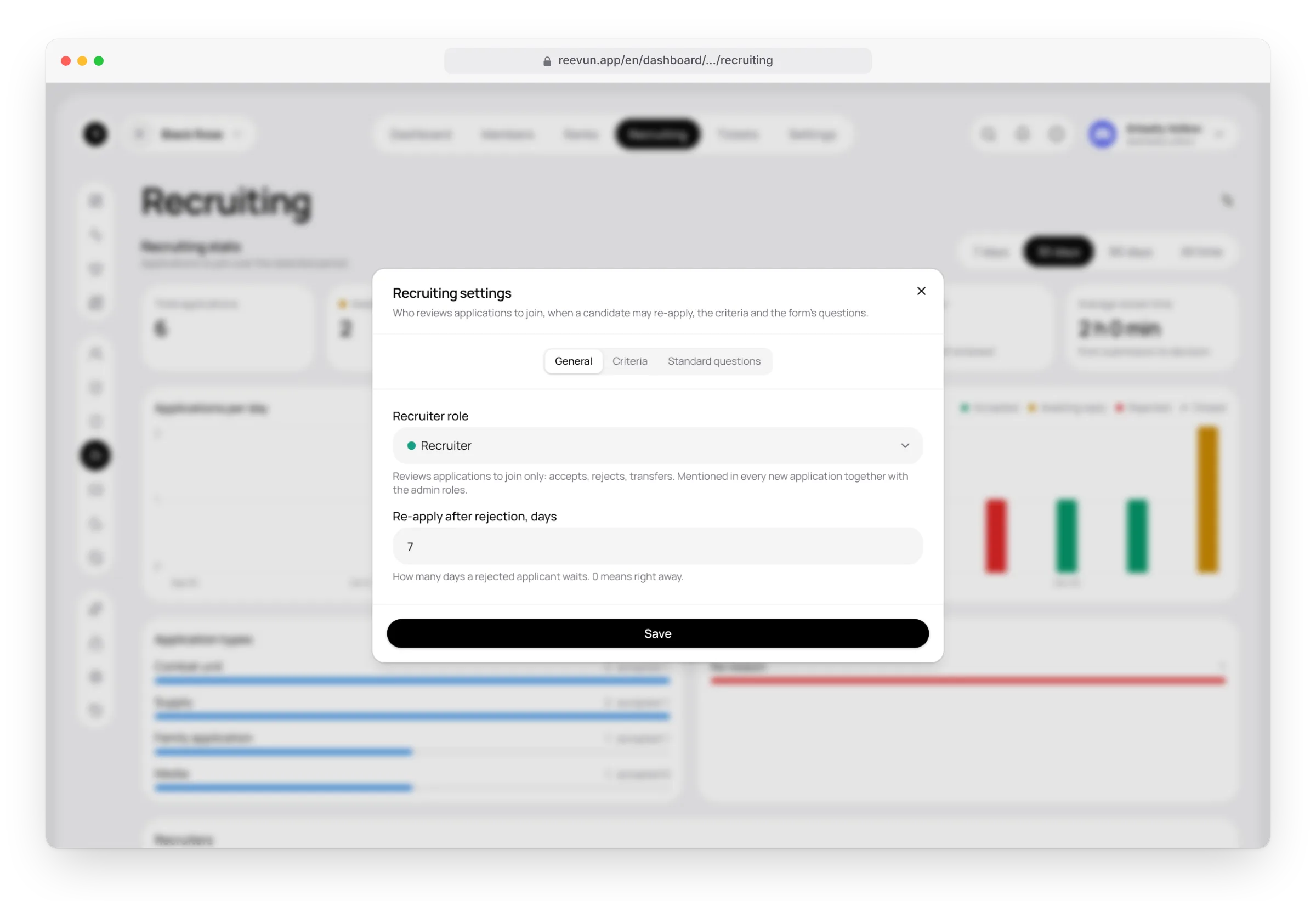
| Setting | What it does |
|---|---|
| Recruiter role | Reviews only applications to join: accepts and rejects them. Mentioned in every new application together with the admin roles. Has no other administration rights. |
| Re-apply after rejection, days | How many days a candidate waits after a rejection. 0 — they can apply again right away. |
| Criteria | Age from and to, review time and extra conditions. Shown in the application panel under "What to know before applying". |
| Standard questions | 1 to 4 questions for applications without a department and for departments without their own questions. |
Statistics
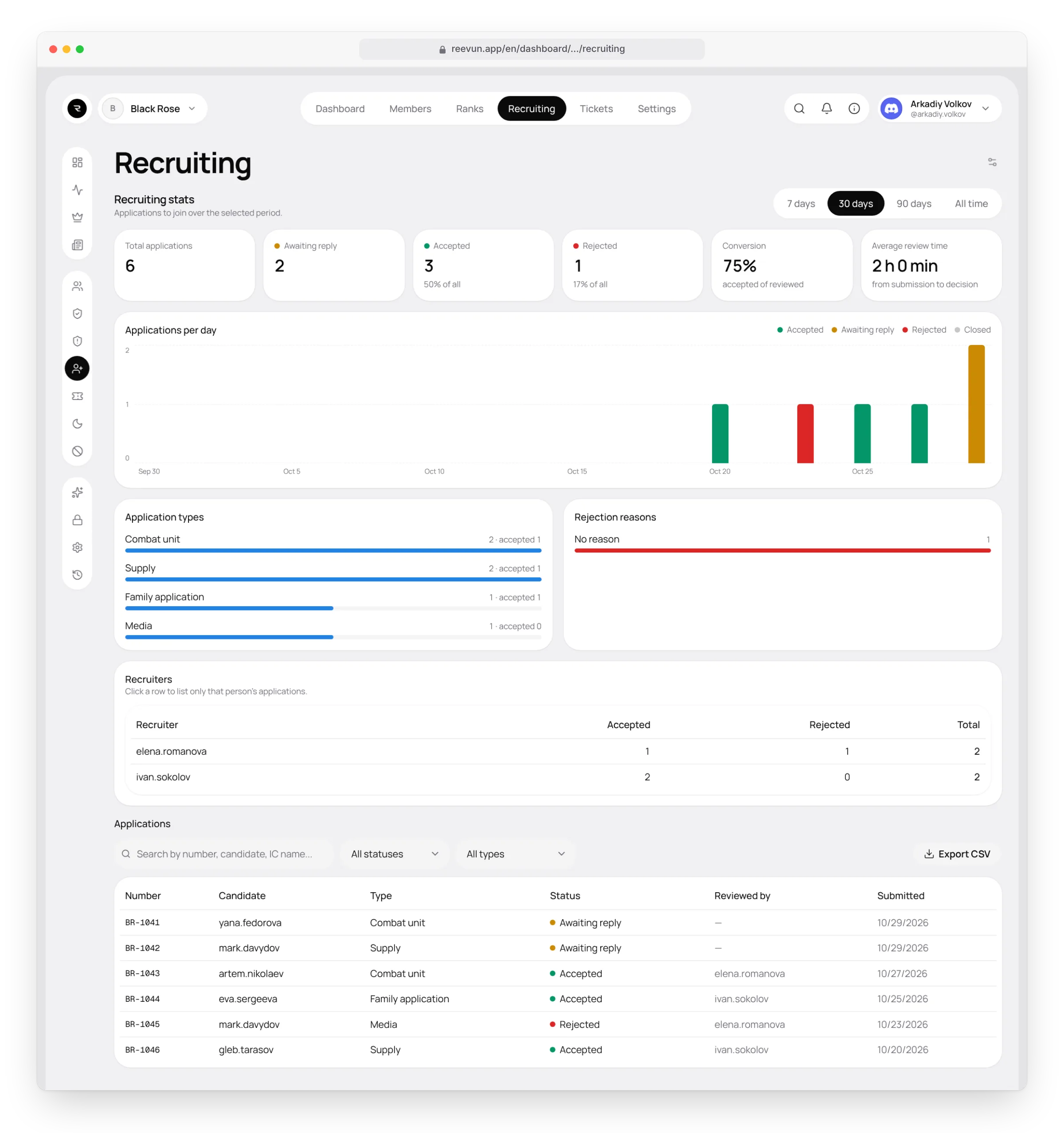
The Recruiting page shows statistics for 7, 30 or 90 days or all time:
- total applications, awaiting a reply, accepted, rejected;
- conversion — the share of reviewed applications that were accepted;
- average review time — from submitting to the decision;
- a chart of applications by day or week, split by status;
- application types — how many went to the family and to each department, and how many were accepted;
- rejection reasons — the most common ones;
- recruiters — who accepted and rejected how many. Click a row to show only that person's applications in the list.
Below is the list of all applications, with search by number, candidate and IC name and filters by status and type. Export CSV downloads the list as a spreadsheet.
FAQ
The candidate presses the button but nothing happens. Check that recruitment is open and that the application panel is in a regular text channel where threads can be created.
The candidate didn't get the decision message. Their direct messages from server members are closed, or notifications are off in their profile. The decision is still visible in the application's thread.
How do I move a member to another department? On the website in Settings → Departments: remove them from one department and add them to another.
Can I recruit without departments? Yes. Without departments all applications go to the family as a whole with the standard questions.