
English
Ranks
Ranks are the steps inside the family, for example "Recruit → Member → Soldier → Lieutenant → Deputy → Leader". Each rank matches one or more Discord roles. You can have up to 20 ranks.
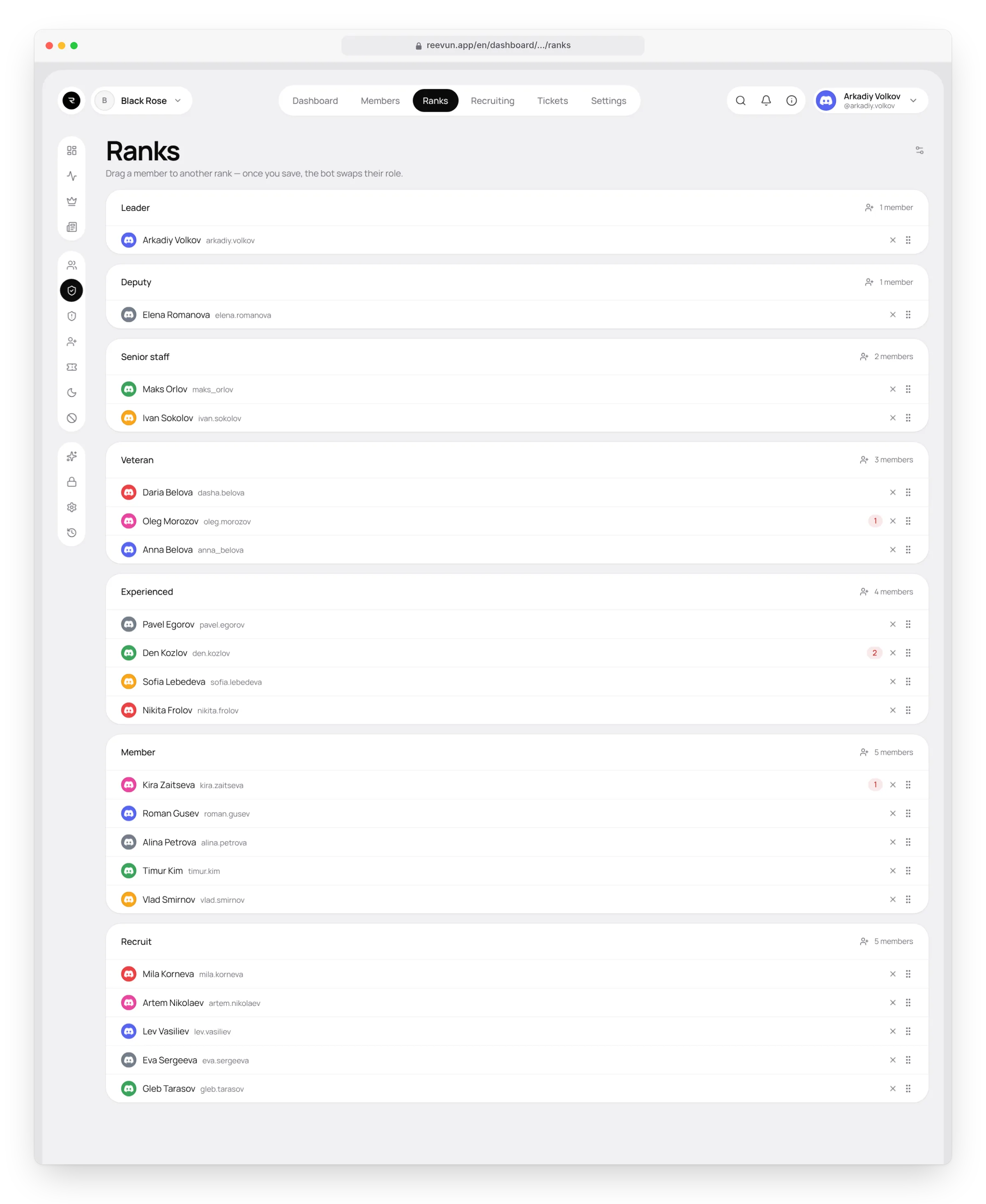
How they work
- Ranks are ordered: rank 1 is the most junior.
- Promotion and demotion always move one step. The bot removes the old rank's roles and gives the new rank's roles.
- An accepted member gets rank 1 right away.
- If an administrator changes a rank role by hand in Discord, the bot notices and records it in the history as "Rank changed through Discord roles".
- The bot doesn't change members' nicknames.
Promoting and demoting
| Where | How | How many at once |
|---|---|---|
The /rank command | Action Promote by one rank or Demote by one rank, the member and the reason | 1 member |
| Admin panel, the Ranks section | Promote and Demote buttons, a list of members and the reason | Up to 10 members |
| The website, the Ranks page | Drag a member to another rank, remove a rank with the cross or add a member with the button in the rank's card, then press Save | Any number |
What happens next:
- The bot changes the member's roles in Discord.
- The change goes to the member's rank history (visible in the profile and on the website) and to the audit log.
- The member gets a direct message: from which rank to which and why.
The bot's role must be above the rank roles
If the Reevun role is below a rank role, the bot can't give it and says "The bot can't manage the role…". See The bot's role position.
Setting up ranks
On the website: Ranks → the settings button in the top right corner.
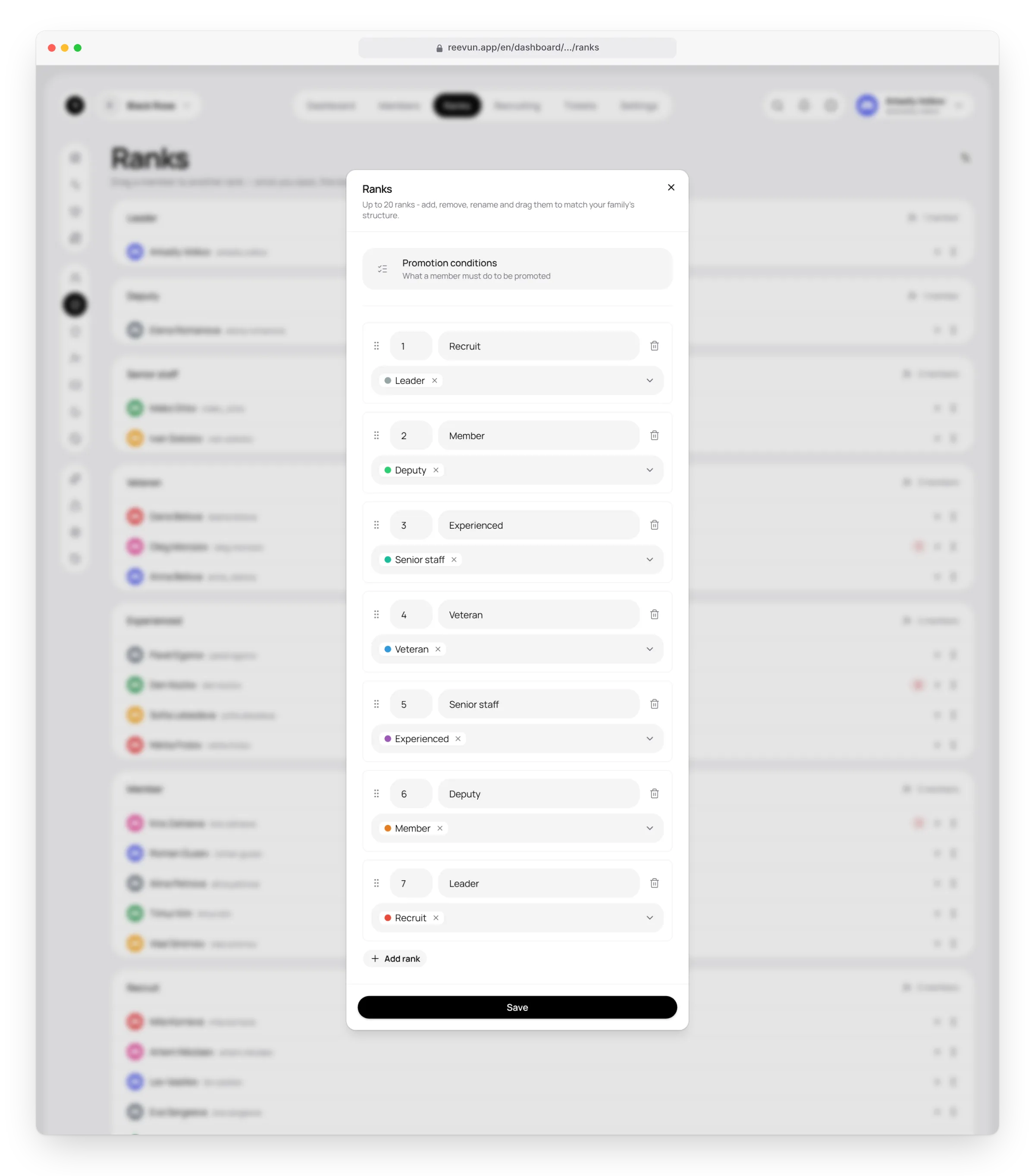
For each rank you set:
- number — its place on the ladder;
- name — how the rank is called in the profile, panels and on the website;
- roles — which Discord roles come with this rank.
Ranks can be added, deleted and reordered by dragging or with the ↑ ↓ arrows. Changes apply with Save.
Promotion conditions
You can describe what a member has to do to be promoted, for example "attend 25 RP events" or "two weeks in the family without warnings". The conditions are set in the rank settings, the Promotion conditions block.
How it works:
- The member creates a Rank change request in the personal cabinet.
- When closing the request, the administrator sees the conditions and marks whether they're met.
- With "yes", the bot promotes the member to the next rank and tells them. With "no", the rank stays the same.
Without conditions, the administrator simply confirms the promotion.
Rank limits elsewhere
Rank can be used as a condition in other modules. For example, in the request settings the "Leave" type can be open only from rank 3.
FAQ
Can a member skip a rank? With the command and in the admin panel — no, only one step. On the website you can drag a member to any rank.
A member got a rank role by hand — will the bot count it? Yes, the rank comes from Discord roles, and the change goes to the history.
What happens if I delete a rank? Members of that rank keep the roles in Discord, but the bot stops treating them as a rank.